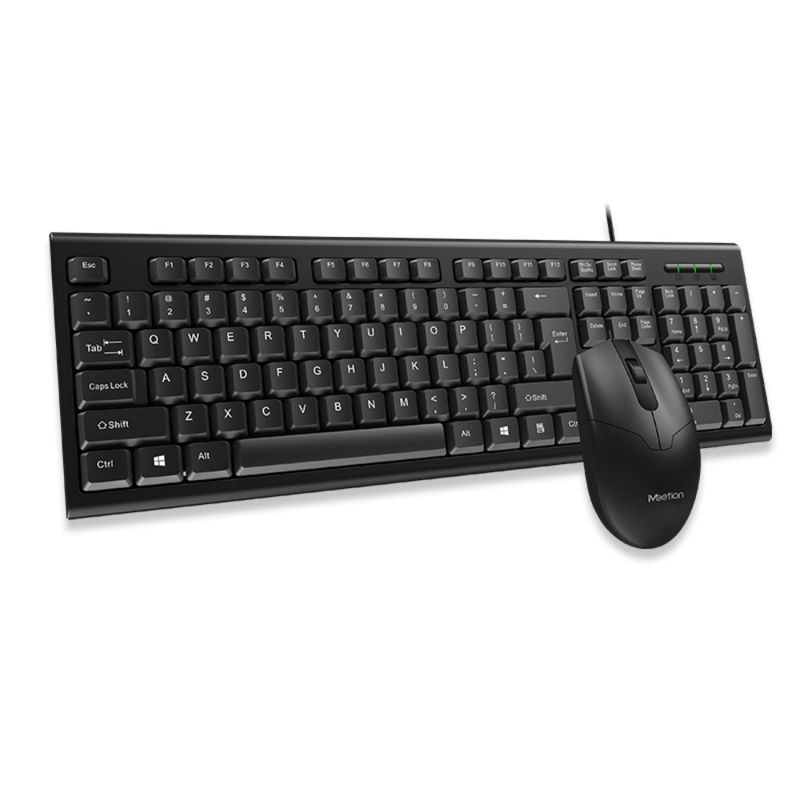
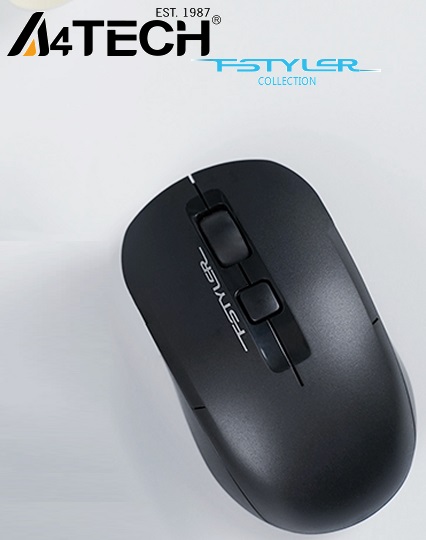
To connect your SENIMO Wireless Keyboard Mouse Combo to your tablet, smartphone, or computer, follow these simple setup instructions: 🔋 1. Charge or Power On Your Devices Keyboard: Look for an ON/OFF slider toggle switch on the upper edge or back panel of the keyboard and slide it to ON . A power indicator light will momentarily light up. Mouse: Flip the mouse over and toggle its power switch to ON . 📶 2. Put the Keyboard Into Pairing Mode Press and hold the Fn key and the C (Connect) key together for 3 to 5 seconds. (On some versions of this 10-inch layout, it may require pressing Fn + Space or just a standalone Connect button near the power switch). The blue Bluetooth status light indicator in the top right area will begin blinking rapidly , indicating it is ready to pair. 📱 3. Pair With Your Device Open Bluetooth Settings: On your host phone, tablet, or laptop, go into Settings > Bluetooth and turn it on. Scan & Select: Search for new available devices. Click on "Bluetooth Keyboard" or "SENIMO Keyboard" when it appears in the scan list. Match Operating System: Once successfully connected, optimize the layout by pressing Fn + Q (for Android) , Fn + W (for Windows) , or Fn + E (for iOS/Apple) . 🖱️ 4. Connect the Mouse Most Bluetooth mice in this combo will automatically appear in your device's Bluetooth discovery list as soon as they are turned on. If it doesn't appear, press the small connect/pairing button on the bottom of the mouse until its sensor light flashes, then select it from your device's screen.
No questions yet — ask the first one.
Sign in after purchasing to rate and review this product.
Sign In